Adding Your Whole Team on Day One, and Making Sure They Actually Sign In
In short
Importing forty staff takes ten minutes. Getting them all signed in is the hard part: which invites landed, and how staff with no email join by mobile.
- Importing the list and getting people signed in are two jobs. Only the first one finishes on the day you press Import.
- Set language, geofence mode and location at import. Changing them later means opening every profile one at a time.
- A blank password column sends an invite link that dies in 24 hours. A filled one sends credentials, which suits a team you are onboarding in person.
You have signed up on a Monday. You have forty people across three branches, a spreadsheet your accountant keeps, and a reasonable expectation that by Tuesday everybody will be marking attendance on their phone.
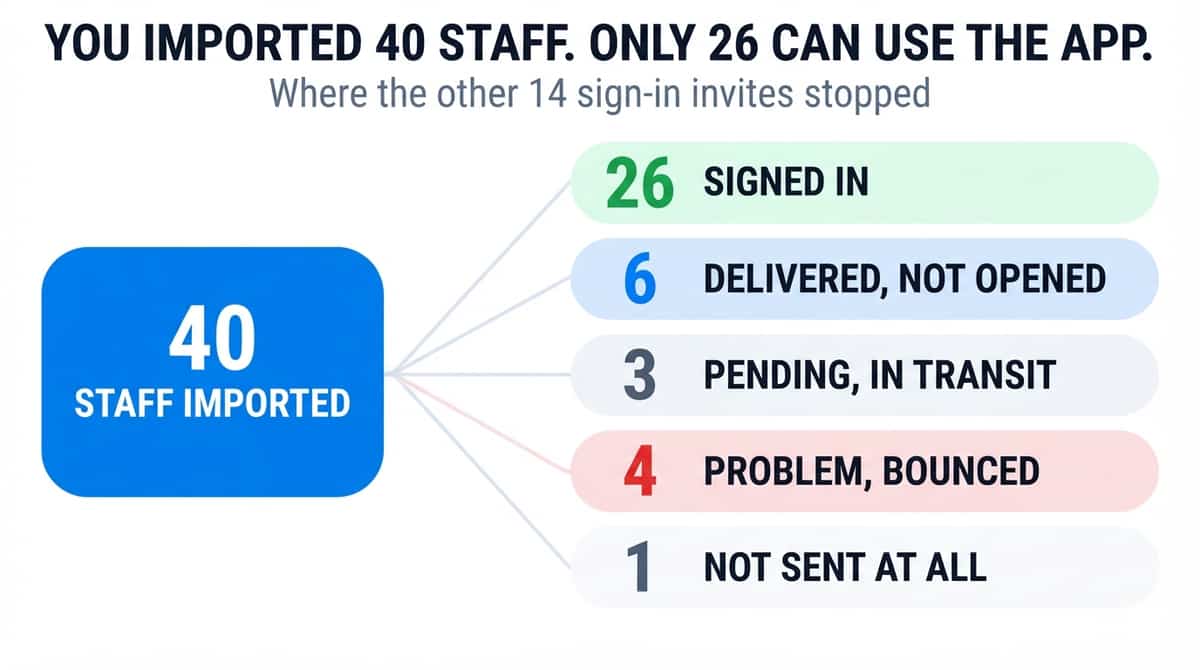
By Friday, twenty six of them are. The other fourteen are still being marked by hand, because their invite went to an address with a typo in it, or landed in a promotions tab, or arrived on Monday afternoon and was opened on Wednesday, by which time the link inside it had expired.
Nobody tells you about this part. Every attendance app has an import screen. Very few of them have an honest answer to the only question that matters a week later: which of my staff have actually signed in, and what happened to the ones who have not.
A staff list is not a workforce
There are two separate jobs hiding inside "add my team", and treating them as one job is why the second week goes badly.
The first is creating the records. Forty names, their branch, their department, what they are paid to do. This is the job every product builds an import screen for, and it is the easy one.
The second is getting forty human beings to open an invite, on email or on WhatsApp, and log in once. That is a delivery problem, a literacy problem and a chasing problem, and it does not finish on the day you press Import.
- 500 : rows one file can carry
- 12 : columns that decide what each person sees
- 24 hours : how long a sign-in link stays valid
You also have a paperwork reason to get the list right rather than approximately right. The Code on Wages, 2019 requires every employer to maintain a register of the persons employed (section 50), and the India Code text of the Act is the version worth reading rather than a summary of it. A register assembled from whoever happened to install the app is not a register.
What the import has to get right on each row
A staff import is not one column of names. Each row carries a small set of decisions, and getting them in at upload time is the difference between a working system on Tuesday and four weeks of editing people one at a time.
- Full name, email, WhatsApp number and country code. In the import file the email is required and is how they sign in. The WhatsApp number is how they hear about anything afterwards. Staff with no email do not go in the file at all: they are added one by one, below.
- Location. This has to match a branch you have already created, because a person on the wrong branch gets the wrong geofence and the wrong shift.
- Department. A department that does not exist yet is created for you, so you are not blocked by having to build an org chart first.
- Hired date. Backdating is fine, and it is what notice periods and experience letters get counted from later.
- Preferred language. One of nine. It sets both what the app is in and what their notifications arrive in.
- Geofence mode and site scope. Whether a check-in outside the boundary is refused, merely flagged, or a mix of the two, and whether the person is tied to one site or may work across several.
Two of those are worth dwelling on. Language is the one owners skip and regret: a housekeeping team that reads Tamil will not use an English app twice, and setting the column at import costs nothing while changing it later means opening forty profiles. Geofence mode is the one owners get wrong in the other direction, putting everybody on strict for day one and spending week two on complaint calls from a site where the GPS drifts.
The template that already knows your branches
Most imports fail validation for a dull reason: the file was built against a blank template, so the branch names in it are the ones the owner uses in conversation rather than the ones typed into the app three days earlier.
So the template you download is not a blank header row. It is a spreadsheet built for your business at the moment you ask for it, with your locations and your departments already sitting in the dropdowns, which means a branch name cannot be spelled two ways.
If you would rather not download anything, select the cells in your existing sheet and paste them straight in. The paste is deliberately careful about one thing: if you highlighted twelve columns of data and left the header row behind, it will not quietly eat your first employee to use as column names.
Duplicate addresses inside the file are caught on the preview screen, before a single account exists. So is running past your plan's staff limit, and if that limit cannot be read for any reason the import stops rather than assuming you have unlimited seats.
Blank password, or a password you chose
One column changes the whole first day, and it is the one people leave alone without realising it is a decision.
| Leave it blank | Type a password | |
|---|---|---|
| What is sent | A branded invite with a one-time sign-in link | A welcome email carrying the credentials you set |
| Who chooses the password | The employee, on first sign-in | You |
| Suits | Staff with working email who can act within the day | Shop-floor teams you are onboarding in person, phone in hand |
| The risk | The link expires in 24 hours if nobody opens it | A password sitting in an inbox is a password sitting in an inbox |
For a warehouse or a housekeeping team, the second column is usually the honest choice. You are standing in front of them at the shift briefing anyway. Set a password, import, and walk the room getting people logged in while you are there. For an office team on their own laptops, the first column is better and safer.
Staff with no email: they sign in with their mobile number
A cleaner, a delivery rider or a kitchen helper often has a WhatsApp number and no email address they have opened in a year. Until recently the honest advice for them was the password column above and an afternoon of logging people in by hand. That is no longer the only way.
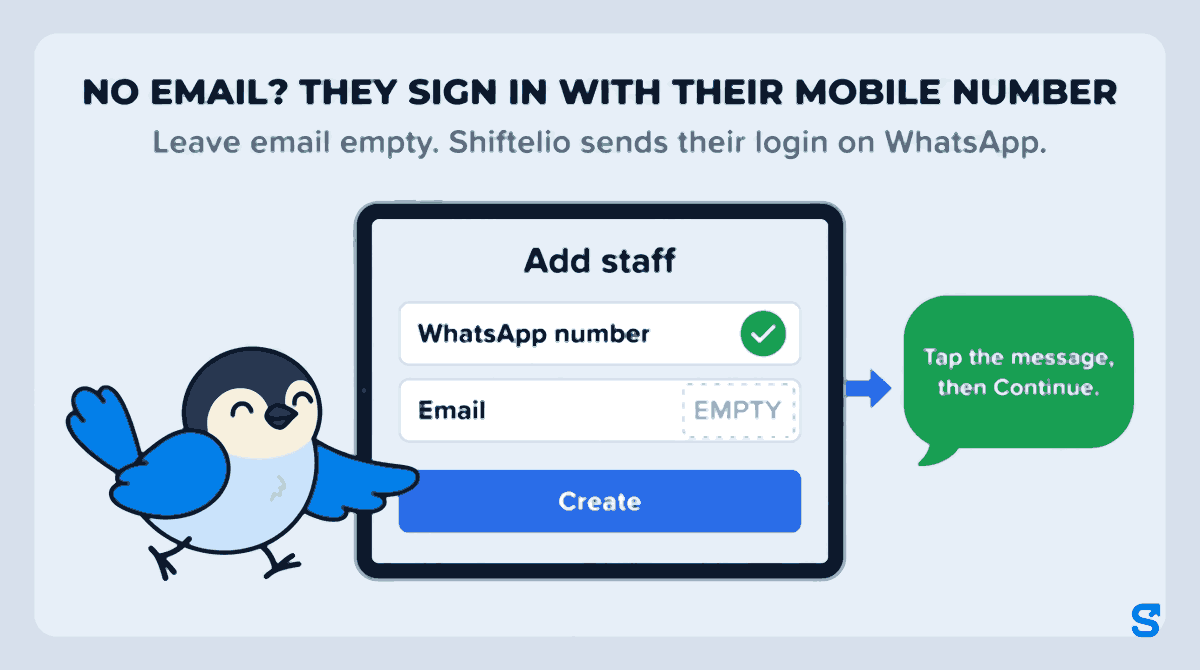
On the Employees page, Add staff takes one person at a time, and the email box can now be left empty. The form says so in plain words: no email, leave it empty, they sign in with their mobile number and Shiftelio sends their login on WhatsApp. Their WhatsApp number is what carries the login, so get it right.
Name, WhatsApp number, branch, department. Leave email blank. If that mobile number already belongs to somebody on your staff, the form tells you who, rather than creating a second account on the same phone.
The message comes from Shiftelio, not from you, and it carries a link that belongs to that one person. They tap the message, then Continue, and they are in. No password to invent, no address to spell.
After you press Create you are told plainly whether the login went or did not. If it did not, an owner can send the same message from their own WhatsApp or copy it and paste it wherever that person reads messages. A manager is pointed to the owner instead.
The owner also has a Send logins screen, reached from the Employees page, that lists everybody against five plain steps: not sent, sent, link opened, joined, clocked in. From there you can send a reminder to one person, send a fresh link if an old one was shared, or post one message in your staff WhatsApp group, in which each person types their own mobile number and gets their own link back. A link sent from Shiftelio is limited to three a day per person, so a nervous tap on Send cannot flood somebody's phone.
Two limits are worth knowing before you plan day one around this. The spreadsheet import still needs an email on every row, and the import page says so: staff with no email are added one by one with Add staff. And the login goes to the person's own WhatsApp, so somebody who shares a phone with a relative, or uses the owner's number, needs their own number first. Shiftelio will not send a staff login to an owner's number.
The part everybody skips: did it arrive?
Here is where an import screen stops being enough.
Sending an email and delivering an email are different events, and the gap between them is where your fourteen missing staff live. An invite can be accepted by your mail provider and then bounced by theirs. It can be delivered and never opened. It can be opened three days later against a link that died after twenty four hours.
So every person you have invited sits in exactly one of five states, and you should be able to see all five on one screen:
Done. They have logged in at least once and the account is theirs now.
The mail reached their provider and was accepted. If they are still sitting here in two days, the problem is not the email, it is that nobody has told them to open it.
Sent, or delayed in transit. Wait, then look again.
Bounced, marked as spam, or refused outright. This address will never work. Fix the address; do not resend to it.
No invite has gone out to this person at all. Usually somebody was created during an import and the sending step was never reached.
The screen that shows this reads live delivery events back from the mail provider, so "delivered" means the receiving server accepted the message, not that we pressed send. You can resend to one person, or resend to everybody currently shown by whichever filter you are looking at, which is the point of filtering to the problem bucket first.
Stale links are flagged separately. If somebody was invited more than a day ago and still has not signed in, their link is dead whatever the delivery status says, and a resend is the only thing that helps.
People you added with no email appear on the same screen with a Mobile login tag instead of an email state, and no Resend or Fix email button, because there is no address to resend to. Whether they have signed in still shows beside their name. If you select a mixed group and press Re-send invites, the emails go out and the mobile-login people are skipped and counted separately, with a note that their login goes by WhatsApp from Send logins, rather than being reported as failures.
When an invite bounces
A bounce is not a mail glitch to be retried. It is a data problem, and resending is the one action guaranteed not to work.
- Read the address out loud to the person. Most bounces are a missing letter in the domain, a transposed pair, or a personal address that was closed when they changed phone.
- Correct the address, then resend. Correcting it is a separate permission from adding staff, on purpose, because the address someone signs in with is the account.
- If they genuinely have no email, do not invent an address you control on their behalf. That would leave you holding their password resets. Add them with Add staff, email left empty, and their login goes to their own WhatsApp.
- Watch for a whole branch bouncing at once. That is a company domain refusing outside mail, and it needs their IT, not another resend.
If these are new hires rather than people moving over from your old system, their sign-in is not the only account being created that week. Provident fund members need a UAN linked and activated through the employer portal at EPFO, which has nothing to do with your attendance app. Do not let a clean-looking staff list convince you the statutory side is finished.
Undoing a bad import
Everybody imports the wrong file once. Usually it is last year's sheet, or the same sheet twice.
Undo removes up to fifty of the accounts a single import created, and it refuses to remove anybody who has already signed in. That refusal is the important half. A bulk delete that will cheerfully remove somebody who has spent three days marking attendance is not an undo, it is a way to lose three days of attendance, and once payroll has read those days the loss stops being obvious for a month.
You are told how many accounts were skipped and why, grouped by reason, rather than handed a list of identifiers.
Who in the office should be allowed to do this
Adding staff and chasing staff are different desks in most businesses. The person holding the hiring paperwork is rarely the person with time to ring fourteen people about an email.
So the permissions are separate ticks rather than one. In Shiftelio the Employees feature is described to the owner exactly as it behaves: see staff profiles, add new people, edit their details, and chase the ones who have not signed in yet. Underneath that sentence, Add and Invite & chase are two different permissions, and so is Fix a wrong email, because changing the address somebody signs in with is closer to holding their account than to editing their job title.
One consequence is worth knowing before you set a role up: ticking Add on its own gives a manager the Invite button and no screen on which to see what happened to it. That is a manager who will tell you, honestly, that they invited everybody.
There is a third tick, Download the list, deliberately not implied by being able to view staff. Anyone who can open the screen can read a phone number. A spreadsheet of every phone number in the business is a different object, because a spreadsheet gets forwarded.
Which app runs the import and the chase together
One thing worth being specific about, because it is where most tools stop. Plenty of systems will tell you an invite was sent. Sent is our word for our own action. What you need on the Friday is the receiving server's word, per person, and somewhere to act on it without exporting anything.
How many employees can I upload at once?
Up to 500 rows in a single file. Larger teams go in as several files, and the staff limit on your plan is checked before anything is created rather than after.
My staff did not get the invite email. What now?
Check which of the five states they are in before you resend. If the state is "problem" the address is wrong and a resend will bounce again. If the state is "delivered" the mail arrived and the person needs a phone call, not another email. If they were invited more than 24 hours ago, the link has expired and a resend is exactly right.
Can I import staff without giving them email addresses?
Not in the spreadsheet import: every row there needs an email. But you can add them one by one. On the Employees page, use Add staff and leave the email empty. The person signs in with their mobile number, and Shiftelio sends their own login to their WhatsApp. Do not invent addresses you control for them, which would leave you holding their password resets.
Can I see which of my no-email staff have actually joined?
Yes. The owner's Send logins screen shows each person as not sent, sent, link opened, joined or clocked in, and lets you remind one person or post one message in your staff WhatsApp group. On the invite status screen they carry a Mobile login tag.
Can a manager add staff without being able to download everybody's contact details?
Yes. Viewing staff, adding staff, chasing invites, correcting a sign-in address and downloading the list are separate permissions. A manager can hold the first three and not the last.
What happens if I upload the wrong file?
Undo removes up to fifty accounts from that import and skips anybody who has already signed in, telling you how many were skipped and why.
Keep reading
Free to use, no signup: Shift roster template.