Daily Attendance Report on WhatsApp: Late, Absent and Left Early in One Message
In short
Send a daily attendance report on WhatsApp in one tap: who came late, who has not punched in, who left early or started outside the site.
A daily attendance report, for a shop, a clinic, a security agency or a site office in India, is usually one WhatsApp message. Somebody looks at the register or the attendance app around mid-morning, works out who came late and by how much, who has not turned up, who is on leave, and types it out for the owner, a partner or head office. Then they do it again tomorrow.
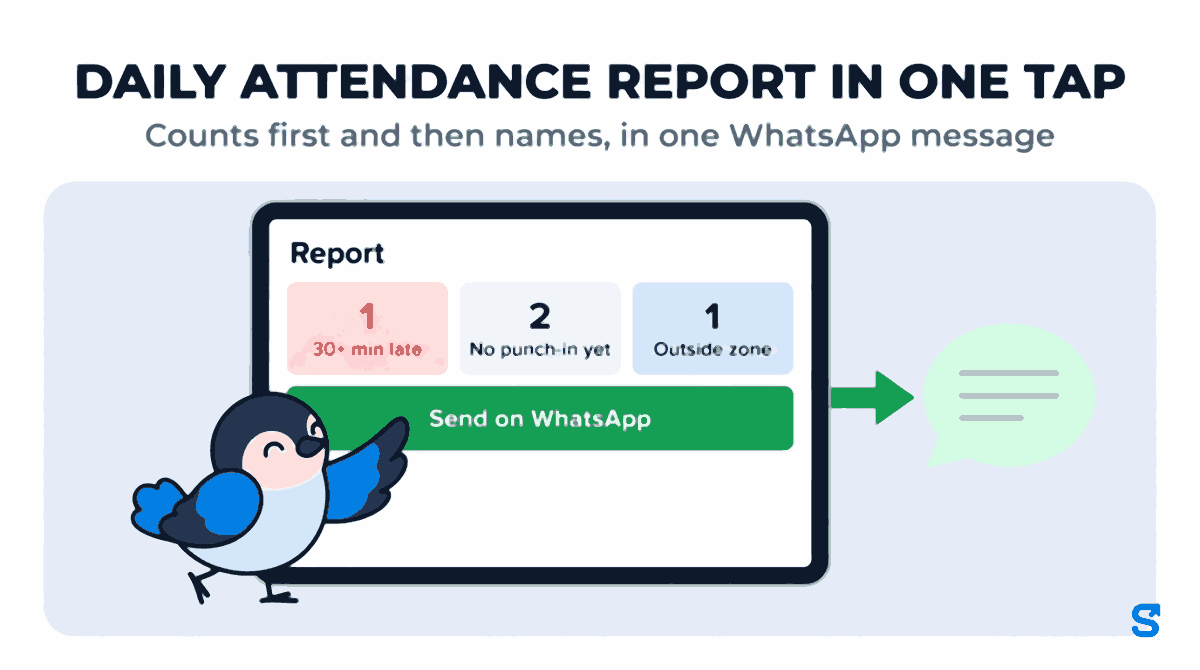
Shiftelio now builds that message for you. A Report button on the owner dashboard opens the day's attendance sorted into late bands, not in yet, left early, outside the work zone and on leave, and Send on WhatsApp puts it into a chat with every name listed. This article walks through what goes into it, what the message looks like, and the places where a hand-typed report usually goes wrong.
Why the hand-typed report is always a little wrong
The person typing it is not lazy. The report is just harder than it looks:
- Late is not one thing. Four minutes late and forty minutes late are different conversations, and a single "late: 5" hides which is which.
- Not in yet is not absent. At 10 in the morning, somebody whose shift starts at 10 is not absent. Somebody on a 06:00 to 14:00 shift who never came is.
- Split shifts double count. A cook who works a lunch shift and a dinner shift and is late for both shows up twice in a list, or is missed entirely in the second shift.
- Leave and holidays get mixed in. A person on approved casual leave lands in the absent list because nobody checked the leave register.
- The list gets cut short. "And 6 more" is what gets typed on a busy morning, and those six are usually the ones the owner wanted to see.
Every one of these is a rule, and a rule is something software can apply the same way every day.
What the Report button builds
The button sits next to Refresh on the owner dashboard. It opens a sheet with two tabs, Attendance and Movement (evening), and a period picker: Today, Yesterday, This week (from Monday), Last 7 days and Custom range, up to 31 days. The sheet follows the location already picked on the dashboard, so it is either All Locations or one branch, and it shows the time the figures were read ("As of"). Refresh reads them again.
The top of the Attendance tab is a row of boxes, each a count you can tap to see the names behind it.
Late, in three bands
Late arrivals are split the way an owner actually reacts to them: 30+ min late, 15–30 min late and Under 15 min. Each person counts once per day, in the band of their worst shift. If you have set a grace time, the bands that the grace time makes impossible are hidden: with a 30 minute grace nobody under 30 minutes is ever late, so those two boxes would always read zero and simply do not appear.
Two clock-ins on the same shift (somebody checked out and back in) count once, from the first, which is the same rule payroll uses. The report counts people per day, while the dashboard's Late card counts clock-ins, and the sheet tells you the clock-in figure too when the two differ.
No punch-in yet, or absent
On today's report the sheet keeps these apart. No punch-in yet is somebody whose shift has started, grace time and all, and who has not checked in while that shift is still running. The row says how long ago the shift started. Absent is somebody whose every shift for the day is already over with no check-in, or anybody missing on a past day. A half day of leave or a half-day holiday still expects them, for half the day.
Nobody is counted for a shift that has not started yet. The sheet says so in plain words underneath: today counts only people whose shift has already started, and approved leave, holidays, weekly offs and staff with no shift set are not counted at all.
Missed a shift, and left early
For staff on split shifts, the report keeps one line per person per day. If they came for the morning shift and not the evening one, they appear under Missed a shift as "came for 06:15, missed 14:00", instead of being called absent for a day they partly worked. While the missed shift is still running it reads "not in yet" instead.
Left early is the last check-out of a shift before the shift's end, with the minutes and the shift's end time. An automatic check-out never counts as leaving early. If the person picked a reason when they checked out early, the reason code stays inside the app and is never put into the WhatsApp text, because a reason such as "health" stops being private the moment a message is forwarded.
Started outside zone
Each check-in made outside the person's own work zone is listed with how far outside it was, and where they actually were. That second line is the useful one. "460 m outside Main Store. Was at Warehouse (not assigned)" is a different story from "460 m outside Main Store. Not at any site". The first is often somebody sent to the other branch for the morning; the second deserves a phone call.
What the WhatsApp message looks like
Two buttons sit at the bottom of the sheet: Copy as text and Send on WhatsApp. Both produce the same text, counts first and then names, in the language you use the app in. Send on WhatsApp opens WhatsApp with the message ready and lets you pick the chat, using WhatsApp's own click to chat link. A report too long for that link is copied instead, and the app tells you to paste it.
Here is a morning report for a small shop, with the names changed:
🚨 *DAILY GPS ATTENDANCE – LATE & NO PUNCH-IN REPORT*
*Date : 01/10/2026*
_All Locations · As of 10:40_

📌 *Summary :*
🔴 More than 30 min late – 1
🟡 15–30 min late – 1
⚪ Less than 15 min late – 2
⚫ No punch-in yet – 2
🏃 Left early – 0
📍 Started outside zone – 1
🌴 On approved leave – 1
⚠️ *Total late : 4 employees*

🔴 *More than 30 min late : 1*
1. *Ramesh Patil* – 42 min (shift 09:00, in at 09:42)

🟡 *15–30 min late : 1*
1. *Sunita More* – 18 min (shift 09:00, in at 09:18)

⚪ *Less than 15 min late : 2*
1. *Imran Shaikh* – 9 min (shift 09:00, in at 09:09)
2. *Kavita Jadhav* – 4 min (shift 09:00, in at 09:04)

⚫ *No punch-in yet : 2*
1. *Anil Pawar* – shift 09:00
2. *Deepak Shinde* – shift 10:00

📍 *Started outside zone : 1*
1. *Imran Shaikh* – 460 m outside _Main Store_
   Was at _Warehouse_ (not assigned)

🌴 *On approved leave : 1*
1. *Pooja Kale* – Casual leave

_Sent from Shiftelio_
The stars and underscores are WhatsApp's own bold and italic, so the names stand out in the chat. Every name is listed, however many there are. Nothing is cut off with "and 6 more", because owners forward this list as it is.
A week or a month at a time
Pick This week, Last 7 days or a custom range and the report changes shape. Instead of one line per check-in it rolls up by person: how many times each person was late in each band and the total minutes, how many days they were absent and which dates, how many shifts they missed, how often they left early, how often they started outside their zone and how far, and how many days of approved leave fell inside the range. A half day counts as a half.
That is the version to send at the end of the week, or to look at before a conversation with somebody who is late every Monday. The period can run up to 31 days, so a full month fits in one report.
The evening Movement tab
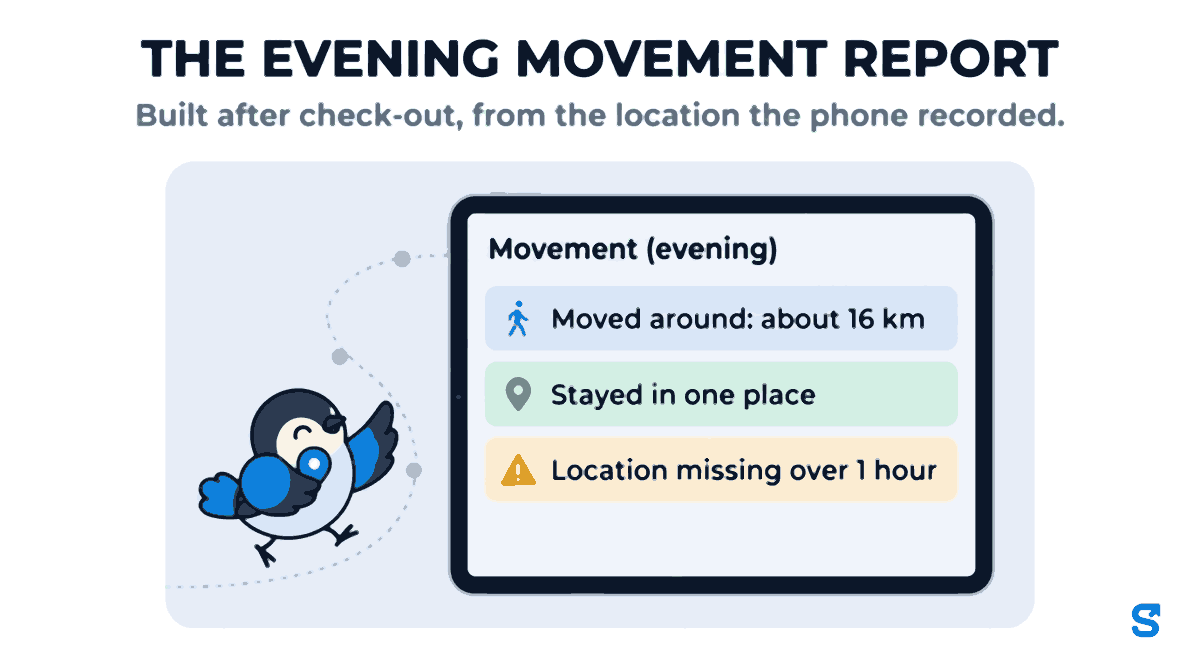
For staff who move around during the day, the second tab answers a different question: where did they go? It is built once per shift, after the person checks out, from the location the phone recorded during the shift. For one day it groups the team into:
- Moved around, with an estimate such as "about 16 km". It is a GPS estimate, so it is never printed to the metre.
- Stayed in one place, meaning the whole shift was spent within about 150 metres.
- Location missing over 1 hour, with the longest stretch of the shift that had no location.
- Still on duty, Checked out, figures coming and No / too little GPS.
For a range it gives each person's total and their kilometres per day. It shares to WhatsApp the same way, as an evening movement report. For a field team or a delivery crew this is the end-of-day message that usually never gets typed at all.
Who can open it, and what it will not do
The owner always can. A manager can only if their role has the attendance view permission, the same tick that lets them see attendance anywhere else in the app, and without it the report is closed to them even by going round the screen. A manager without it does not see the button.
Three honest limits:
- It needs shifts. Late, absent and left early are all measured against a shift. Staff with no shift set are never counted, and if nobody has a shift for the period the sheet says that nobody can be counted absent, instead of showing an empty list that looks like a perfect day.
- You press Send. The button builds the message and opens WhatsApp; it does not post to a group by itself on a timer.
- It reads, it does not change. Fixing a wrong check-in still happens in attendance, where the change is logged. The report reflects the fix the next time you refresh it.
A note on privacy: the forwarded text carries names, times and places, which is personal data under India's Digital Personal Data Protection Act, 2023. Send it to the people who need it to run the business, not to the whole staff group. That is also why the check-out reason is kept out of it.
Which app sends the daily attendance report for you?
Questions owners ask
Can a manager send the report instead of the owner?
Yes, if the manager's role has the attendance view permission. The owner turns that on under roles. Without it the Report button does not appear for that manager.
Does it work for one branch only?
Yes. The report follows the location picked on the dashboard. Pick one branch and the report, and the WhatsApp text, cover only that branch.
Why does somebody show as "No punch-in yet" and not absent?
Because their shift is still running. On today's report a person moves from No punch-in yet to Absent only once every shift they had that day is over.
Is the late count the same as the Late card on the dashboard?
Not always. The card counts late clock-ins; the report counts people per day, so a person late for two shifts is one person on the report. When the two numbers differ, the sheet shows both.
Can I send last month's attendance report?
Yes, with Custom range. A range can be up to 31 days, and the report rolls up by person instead of listing every day.
Keep reading
Free to use, no signup: Attendance register generator.