Store Manager and Shift Supervisor Access: What to Hand Over and What to Keep
In short
Give a store manager the rota, holiday requests and clocking-in fixes for their own shop, and a shift supervisor the floor. Pay and hiring stay with you.
- A store manager needs the rota, holiday approvals, clocking-in fixes and tasks, for their own shop only.
- A shift supervisor needs to mark people in, fix the clock and hand out jobs. They do not need to change the rota.
- Pay rates, bank details, adding or removing staff and handing out roles stay with the owner.
Give a store manager the rota, holiday requests and clocking-in fixes for their own shop, and give a shift supervisor what they need on the floor: marking people in, fixing a missed clock-out and handing out jobs. Keep pay rates, bank details, hiring and the power to hand out access with you, the owner.
That split is easy to agree with and hard to keep once a staff app is involved, because most apps offer two settings: admin or not. This guide sets out the store manager responsibilities and shift supervisor duties that belong in a small UK business's staff app, what to hold back, and how to set both up in a few minutes with Shiftelio's ready-made role templates.
What a store manager and a shift supervisor actually do
Before you touch any settings, write down what each person does on a normal week. In a café, a shop or a cleaning firm it usually looks like this.
| Job | Store manager | Shift supervisor | Owner keeps it |
|---|---|---|---|
| Plan the weekly rota | Yes | No | Can do it too |
| Approve a holiday request | Yes | Yes | Can do it too |
| Fix a missed clock-out | Yes | Yes | Can do it too |
| Mark in someone whose phone died | With the shop switch | Yes | Can do it too |
| Hand out and check tasks | Yes | Yes | Can do it too |
| See pay, loans or bank details | No | No | Yes |
| Add or remove staff | No | No | Yes |
| Decide who gets which access | No | No | Yes |
Two things stand out. First, the store manager and the supervisor overlap on most of the day-to-day work; the difference is the rota. A supervisor runs the shift they are on, a store manager plans the week. Second, nothing in either column involves money. Shift timings feed pay, so whoever edits the rota can also change what a shift pays. That is why the store manager's access should cover their own shop and nobody else's.
What stays with the owner, and why
Keeping something back is not a sign of mistrust. It protects your manager as much as you.
- Pay rates and bank details. Nobody needs to know what a colleague earns to run a Saturday shift. If a pay figure is ever questioned, it helps that only you could have changed it.
- Adding and removing staff. Hiring and letting someone go are your decisions, with your paperwork behind them. A manager can recommend; the record changes when you act.
- Handing out access. If a manager can give roles, they can give themselves more. In Shiftelio this stays with the owner unless you deliberately tick it for someone, and every role template says so on its card: Hand out roles (stays yours).
A worked example: two cafés in Bristol
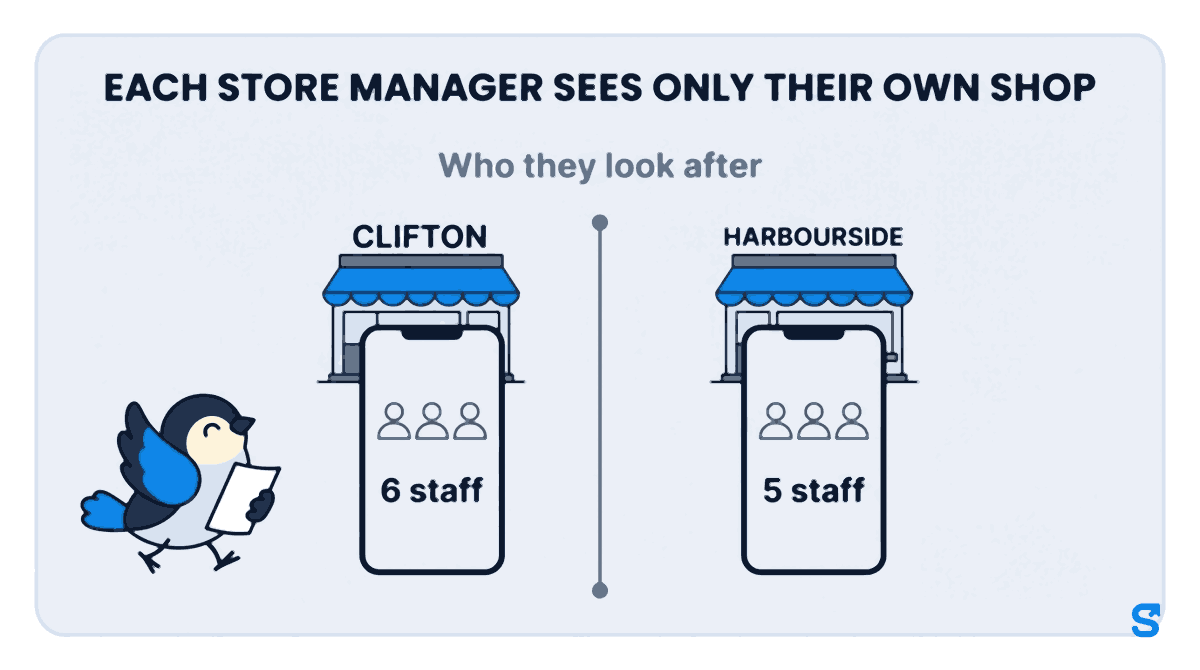
Rachel owns two cafés in Bristol: Clifton, with 6 staff, and Harbourside, with 5. Sam manages Clifton, Jo manages Harbourside, and two weekend supervisors, Amy and Kieran, cover both shops on Saturdays and Sundays. That is 13 people, and Rachel wants each of the four to have exactly what their job needs.
Sam and Jo: the store manager role
Rachel opens Roles in Shiftelio and taps Create Role. The role editor walks her through four short sections.
She names the role "Store Manager Clifton" and, under Start from a template, picks Manager / HOD. Its card says what it is for: runs a department or shift day to day, with attendance, leave, rota and tasks.
Before anything is applied, the template shows two lists. They can: see, fix and approve attendance, approve leave, add and edit shifts, give, assign and excuse tasks. They can't: see pay, loans or bank details, add or delete staff, or hand out roles. Because Sam runs a shop, Rachel switches on Hotel, security or shop?, which also lets him mark attendance for others and issue company items such as aprons and keys. She taps Use this template.
She picks the Clifton site. Sam will see and manage the 6 people at Clifton and nobody at Harbourside. Each store manager sees only their own shop. A holiday request in the app is called leave, so when a Clifton barista asks for a week off in August, it lands with Sam.
She ticks Sam and saves. The last screen confirms the role is saved and lists what Sam can now do, and who he looks after.
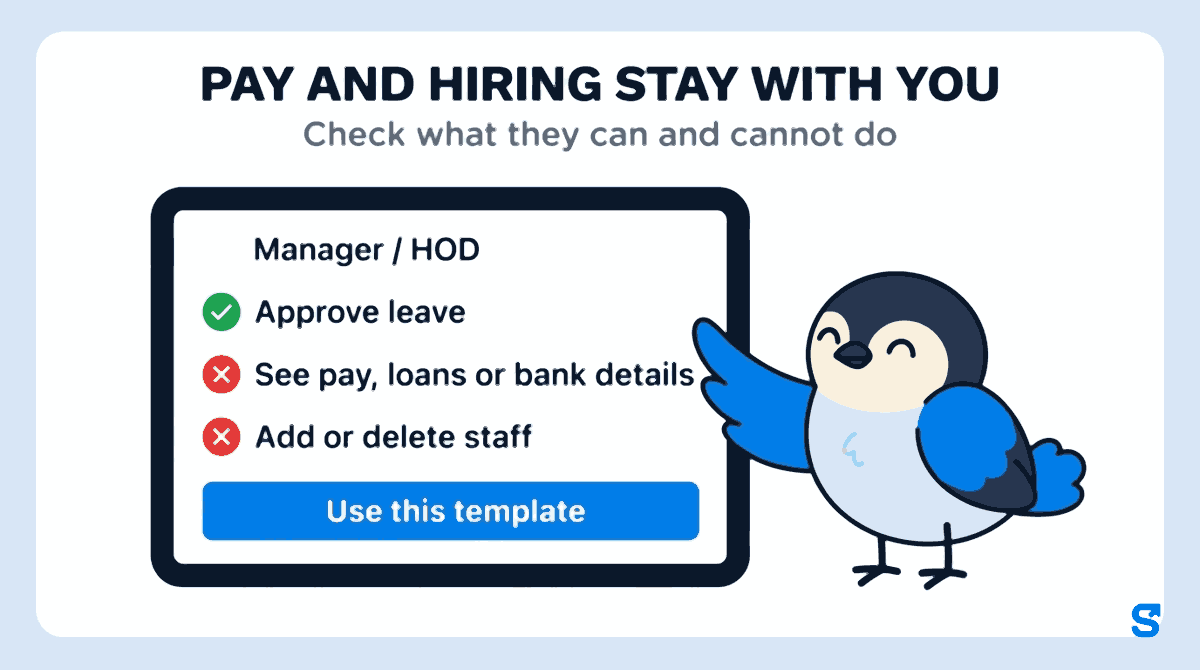
She repeats it for Jo with a second role, "Store Manager Harbourside", scoped to that site. Every tick in the template can still be changed by hand afterwards, so if Jo should not see the live map, for example, Rachel unticks it.
Amy and Kieran: the shift supervisor role
For the weekend supervisors Rachel picks the Supervisor / Incharge template. It fixes the clock, marks people in and hands out work, and its "They can't" list includes Change shifts: the supervisor runs the shift they are on, they do not rewrite the rota. Because Amy and Kieran cover both cafés, she leaves Who they look after on both sites.
Under Who gets it she ticks both of them, and the section now reads Give to 2 people. One save gives the role to both. If the same role is later needed by a third supervisor, Rachel opens the role's people box and ticks them there.
The checks Shiftelio makes before you save
A role is only as safe as its widest tick. The editor flags the risky combinations in plain words before you save:
- Shift editing for everybody. If a role can edit shifts and looks after everyone in the business, you get a Heads up: they can change shift timings and pay rates for every employee. That is the moment to pick a site.
- Marking in for everybody. The same warning appears when Mark for others is on for a role that covers the whole business.
- Sensitive ticks are counted. Each template card shows how many of its permissions are sensitive, so a role that touches money is obvious at a glance.
- Editing a role that people already hold. The editor tells you how many people it changes right now and lists what you are adding and removing, because a saved change takes effect straight away.
- A change log. The Change log on the Roles page shows every change to a role and who made it.
If you want a manager to share some of this work, for example a store manager who gives the supervisor role to new weekend staff, you can tick that for them. If they also build roles, a template with any tick they do not hold themselves is greyed out and says Needs the owner.
What gov.uk says about who sees staff data
This article is about running a shop, not about the law, and we are not lawyers. One official line is worth knowing when you decide who sees what.
The gov.uk page on data protection (checked on 8 October 2026) says everyone responsible for using personal data has to follow the data protection principles, including that information is "used in a way that is adequate, relevant and limited to only what is necessary" and "handled in a way that ensures appropriate security, including protection against unlawful or unauthorised processing, access, loss, destruction or damage". The rules sit in the Data Protection Act 2018 on legislation.gov.uk.
This is general information, not legal advice: check with the agency or an employment lawyer for your case.
For a small employer, "limited to only what is necessary" is also a practical test. A supervisor who fixes clock-outs does not need anyone's bank details, so their role does not include them.
Which staff app lets a store manager run the shop without seeing pay?
If the rota is the part you hand over first, see how shift rotas work in Shiftelio, or browse everything the owner's app covers on the features page. For UK pricing and plans, start from Shiftelio for UK businesses.
Questions owners ask
What are a store manager's main responsibilities in a small shop?
Planning the rota, approving holiday requests, fixing clocking-in mistakes and handing out tasks for their own shop. Pay, hiring and access usually stay with the owner.
What does a shift supervisor do that a store manager does not?
A shift supervisor runs the shift they are on: marking people in, fixing the clock and giving out jobs. A store manager also plans the week's rota.
Should a store manager see staff pay and bank details?
Usually not. Running the shop day to day needs none of it, and keeping pay with the owner protects the manager if a figure is ever questioned.
Can I give the same role to several supervisors at once?
Yes. In Shiftelio tick everyone under Who gets it and the section reads Give to 2 people, or however many you picked. One save gives it to all of them.
Can a store manager see staff at my other shop?
Not if you pick their own site under Who they look after. Sam at Clifton then sees the Clifton staff and nobody at Harbourside.
Can I change a role after I have given it out?
Yes. Open the role, change the ticks and save. The editor first tells you how many people it changes and what you are adding or removing.