Tracking Employee Mileage When Staff Drive Their Own Car Between Clients
In short
Track employee mileage from the shift itself: every client stop named, the km between them on a timeline, so mileage pay rests on a record, not a form.
- A mileage log written by the driver after the week is a memory, not a record.
- A shift timeline shows each client stop by name, how long they stayed and the km between stops.
- Name a client's address once and every later visit there shows that name.
The simplest way to track employee mileage is to stop asking staff to write it down. Let the phone they already clock in with record the shift, turn it into a list of named client stops with the kilometres between them, and pay mileage from that list instead of from a log filled in on Friday night.
This article is for Canadian owners whose staff drive their own car between clients: home care agencies sending personal support workers from one home to the next, cleaning companies moving a crew between offices, trades running a van from job to job. It covers what a mileage record needs to show, why the usual log fails, and how the field day timeline in Shiftelio builds one without anybody typing.
What an employee mileage record actually has to show
Whatever form you use today, a mileage claim you can stand behind answers four questions:
- Which clients were visited, by a name you recognize: "Mrs. Leblanc, Mississauga", not a postal code.
- In what order, because the distance from client A to B to C depends on the order.
- How far each drive was, so the claim adds up to a number with a source.
- What happened in the gaps, said plainly, so a long blank is explained rather than argued about.
A paper mileage log or a spreadsheet asks the driver to supply all four, usually at the end of the week. The person being paid is the person writing the measurement, after the fact. Most people are honest, and an honest log written from memory is still wrong: a detour gets rounded up, a short hop gets forgotten, and the owner has no way to tell which.
Why the usual mileage methods fall short
| Method | What you get | Where it breaks |
|---|---|---|
| Paper or spreadsheet mileage log | Odometer readings typed in later | Written from memory; nothing ties a trip to a client |
| A flat weekly travel allowance | One number per person | Overpays the quiet week, underpays the busy one |
| A separate mileage tracking app on the employee's phone | A trip log the employee controls | One more app to remember; trips can be added, deleted or tagged personal |
| The shift itself, laid out as a timeline | Client stops, drives with km, and gaps, between clock-in and clock-out | Needs the phone's location on during the shift |
The separate mileage app is where many small businesses land, and it solves the wrong half. It is built for a self-employed driver claiming their own trips, so the employee starts it, stops it and decides what counts. You get a tidier log, still written by the person being reimbursed.
How Shiftelio turns a shift into a mileage record
Shiftelio records where a staff member's phone is while they are clocked in, and stops when they clock out. The field day timeline reads that shift back as the day you would describe it yourself: place names for every stop, the day as a timeline, km so far, and your own saved places. It is part of every plan; you choose which people it applies to.
Pick the people who drive
Under Settings → Field staff there is a list called Who works in the field. Switch it on for the people whose job is to travel: the PSWs, the mobile cleaners, the service techs. Shiftelio marks someone as Suggested when most of their recent check-ins were away from any of your sites, so you do not have to work it out. People who stay at one location are left alone.
Read the day as stops and drives
A stop is a place the person stayed for a while, such as a client's home. The time between two stops is a drive, and each drive carries its kilometres. Here is part of a personal support worker's Tuesday in Mississauga as the timeline shows it, with the summary line for the day so far:
- 8:55 a.m. Checked in, near Square One
- 9:10 to 10:05 a.m. Mrs. Leblanc, 55 min, saved place
- Drive 6.2 km
- 10:20 to 11:15 a.m. Mr. Okafor, 55 min, saved place
- Drive 9.8 km
- 11:35 a.m. to 12:10 p.m. No location, 35 min. Location was turned off
- Summary About 31 km so far, 4 stops, 4 h 40 min on duty
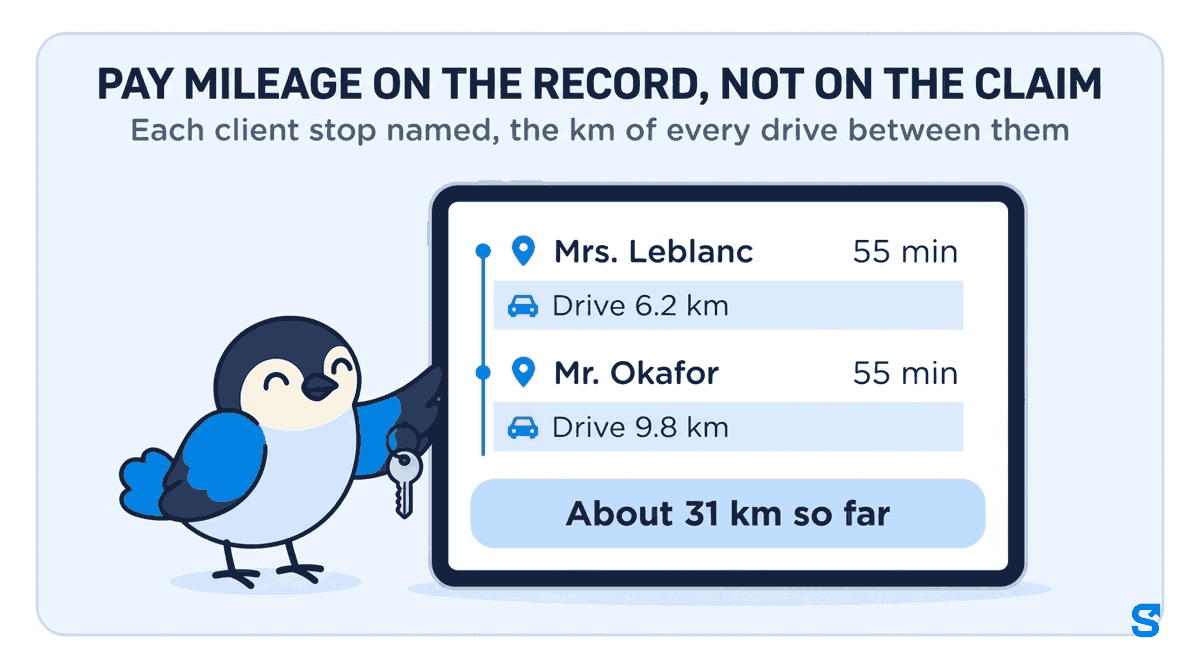
For an open shift the summary reads "About 31 km so far" and updates through the day, so an owner checking at lunch sees the morning, not a blank until clock-out.
Name a client once, and every visit shows it
A map name is fine for a road and useless for a client. "Near Hurontario Street" tells you nothing; "Mrs. Leblanc" tells you the visit happened. So you save places, in either of two ways:
From the timeline. Any stop has a Save this place button. Type the client's name and save. Every stop inside that place by any of your staff now shows the name, on later visits and on past days too.
From Settings. Under Settings → Field staff → Saved places, add a place with its location. In Google Maps you can copy a spot's two numbers by pressing and holding it (Google's own help page shows how). Choose how close counts as "here".
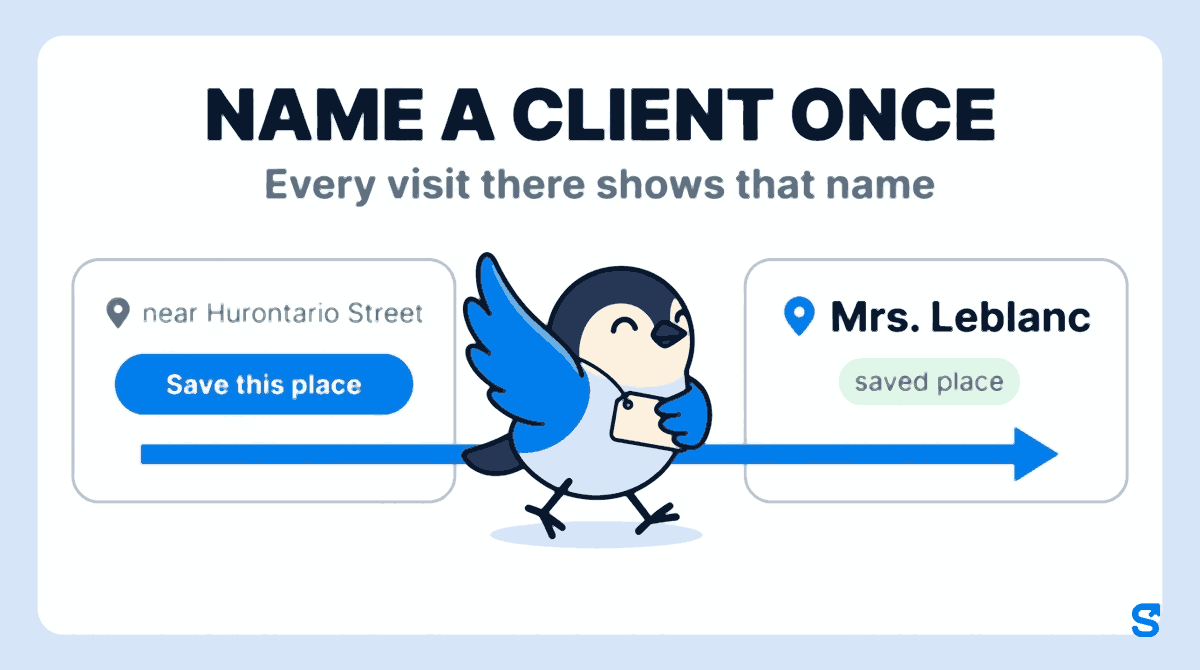
Only the owner, or a manager given the Save places permission, can name a place. Staff see their own day on their own attendance record but cannot change what it says. Stops that are not saved show the area name from OpenStreetMap; Google place names are an optional paid add-on, and the timeline works without it.
Gaps say why, instead of hiding
When the phone sends no location for a stretch, the timeline shows No location and the most likely reason: location was turned off, the battery was very low, the phone closed the app, or the reason is not known. No kilometres are counted across a gap, because nobody knows the route taken in it. That is fairer in both directions: a dead battery reads as a dead battery, and an unexplained hour is visible instead of smoothed over.
If a shift's distance cannot be trusted at all, it reads Distance unclear rather than printing a number, and it is left out of the totals. The stops and times are still there, so you can settle that day by hand.
Turning the kilometres into mileage pay
The timeline gives you kilometres per shift; the Movement tab of the attendance Report lists each person's Total travelled for the dates you pick. What you pay per kilometre is your own policy, written down before anybody drives. Two habits keep it clean:
- Pay on the record, not on the claim. Each pay period, take the kilometres from the Report, multiply by your rate, and add it as a separate line from wages.
- Settle exceptions by hand, once. A "Distance unclear" shift or a long gap gets a short conversation and a manual figure, not a rule that guesses.
How a per-kilometre allowance is treated for tax is a question for your accountant, not for this article.
The Ontario rule on travel during the workday
Mileage is money, but the drives on the timeline are also time. Ontario's guide to the Employment Standards Act, on its Hours of work page (checked on 10 October 2026), says "Time spent travelling during the course of the workday is considered to be work time." The same page says commuting from home to work and back is generally not work time, and lists exceptions, such as taking a work vehicle home for the employer's convenience.
So in Ontario, the drive from Mrs. Leblanc to Mr. Okafor is time worked as well as kilometres driven. Other provinces set their own rules on their own government sites, so check your province's employment standards page before relying on this.
This is general information, not legal advice: check with the agency or an employment lawyer for your case.
Where this fits, and what it is not
The one thing it does that a stand-alone mileage app does not: the record is built from the shift the person was paid for, not from trips the driver chose to log.
Frequently asked questions
Do staff need a separate mileage app?
No. The same app they clock in with records the shift, and the timeline is built from that. There is nothing extra to start, stop or remember.
Is my staff's location recorded after they clock out?
No. Location is recorded between clock-in and clock-out only, and the timeline is built from those hours. Tell your staff this in writing before you switch it on; a record people were told about is one they trust.
Can an employee edit their own kilometres?
No. Staff see their own day on their attendance record but cannot change the stops or the kilometres. Only the owner, or a manager with permission, can name a place.
What if someone switches location off during a shift?
The timeline shows a No location gap with the reason "Location was turned off", and no kilometres are counted across it. You see the gap and its cause, not a straight line drawn across it.
Does the km match the car's odometer?
Not exactly. It is the distance between stops worked out from the phone during the shift, so it will usually differ a little from an odometer. Use it as the agreed source for mileage pay, and say so in your mileage policy.
Does it cost extra?
The field day timeline is part of every plan. Google place names for unsaved stops, and the live team map, are separate paid add-ons.