Live Staff Location for Department Heads: Each Manager Sees Only Their Own Team
In short
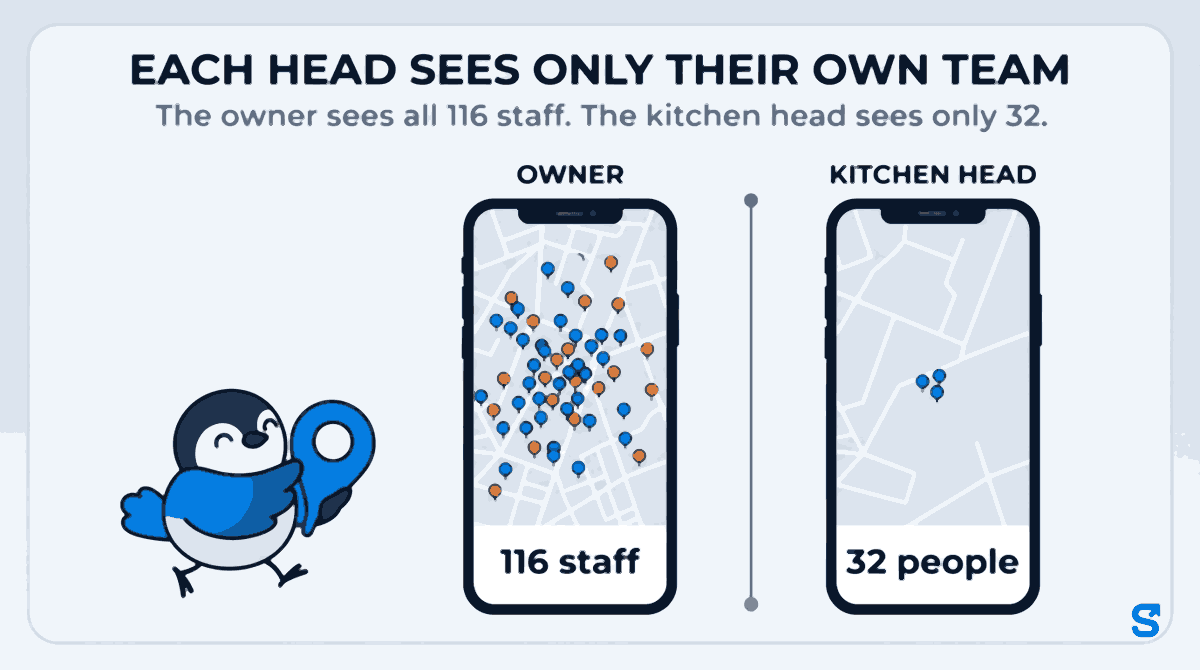
Give each department head the live map of their own team only, not all 116 staff. How to set it up in an employee location tracking app, step by step.
- The owner and co-owners see everyone; a limited manager sees only their own team on the live map and the Phones reports.
- Limit a role by department, by work location, or by the holder's own crew.
- Ask to check, Export, Review flags and Send set-up reminder are separate ticks, all off by default.
You run a business with more than one team. A kitchen and a service floor. A housekeeping crew, a security crew and a maintenance van. Sales executives in the east of the city and service technicians in the west. You want each head to see where their own people are during the shift, because that is how the day gets run. What you do not want is the kitchen head scrolling through the phones and positions of the whole company.
This is the question most owners ask late, after they have already handed out the live map: can a manager see only their own team's live location? In Shiftelio the answer is yes, and it follows one rule everywhere the location and phone details show up. This article explains the rule, how to set it up in about five minutes, and the one gap you have to close yourself.
Why one live map for everybody is the wrong default
A live map is supervision. It answers "where is my team right now, while they are on shift". It is a fair thing for a department head to have for the people they are responsible for.
Everybody else's location is a different thing. A department head who can see all 116 people, including other departments, the owner's own family members on the payroll and the accountant who works from home, holds location data they have no job reason to hold. If their phone is lost, or they leave for a competitor, that is what walks out with them.
India's data law puts the responsibility on you, not on the manager. Under section 8(5) of the Digital Personal Data Protection Act, 2023, the business must protect personal data in its possession "by taking reasonable security safeguards to prevent personal data breach". Showing each supervisor only the people they supervise is the simplest safeguard there is. The Ministry keeps the Act and its rules on its data protection framework page.
- 116: staff in a restaurant group with four departments
- 32: people the kitchen head's role covers
- 84: people whose location the kitchen head never needs
What a department head sees, and what the owner sees
The owner, and every co-owner, sees everybody. That does not change.
A manager whose role is limited to a department, a work location or their own crew sees only the people that role covers, on every screen that shows a person's location or phone:
| Screen | Owner | Department head |
|---|---|---|
| Live map positions | Everyone clocked in | Their team, clocked in |
| Phones: Reporting | Every phone | Their team's phones |
| Phones: App version | Every phone | Their team's phones |
| Ask to check | Anyone, or everybody | One of their team, or all of their team |
| Phone change history | Every device | Devices used only by their team |
The last row needs a word. A phone change history shows which handset each person has used. If a phone was also used by somebody outside the head's team, the head does not see that phone in the list, because it would tell them something about a person they do not manage.
The same rule carries to the small actions too. A head can send the "please update" reminder for the app only to somebody in their team. Asking one phone to check its settings works only for a person the head manages, and "everybody" means everybody in their team, not the company.
How to set it up, step by step
Everything below is on the Roles screen, and it takes about five minutes for a business with four departments. If you have not given a manager access before, read giving a manager access without sharing your owner login first: it covers creating the role itself.
Open each department and check the list. This matters more than any tick box, for the reason in the next section.
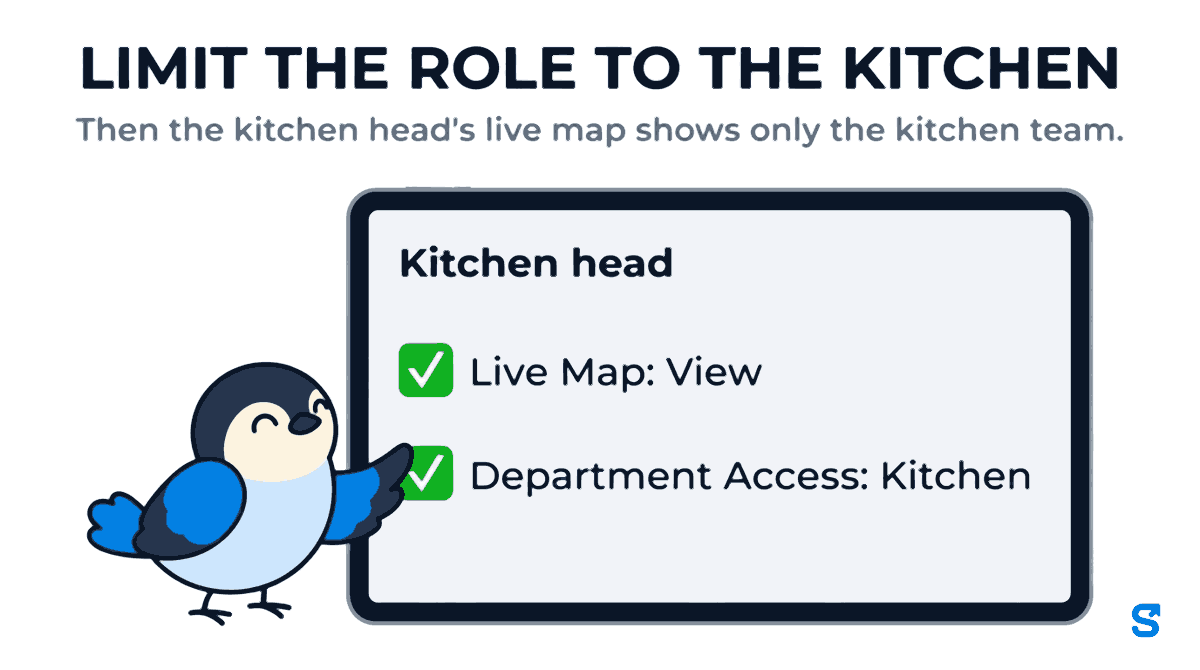
Create a role such as "Kitchen head". Under Live Map, tick View. That is what the product calls "See where staff are right now while they are clocked in."
In the same role, pick the department under Department Access (leave empty for all). If your heads run sites rather than departments, use Limit this role to specific work locations, or leave empty for access to all instead. If you pick both, a person must be in one of the chosen departments and at one of the chosen locations to appear.
Live Map has separate ticks for Ask to check, Export, Review flags and Send set-up reminder. Every one of them is off until you tick it. Export is worth thinking about: the file carries every recorded GPS point for that person and day, and it keeps working after the role is taken away.
Assign the role, then ask the head to open the live map and the Phones tab on the Attendance page. Count the people. If the number is higher than their team, somebody has no department yet.
The one gap you close yourself: people with no department
Here is the honest part. A person with no department is visible to every head whose role is limited by department. Shiftelio does not hide somebody because their department is missing, since a person who silently vanished from every manager's screen would be worse: nobody would notice them not turning up.
So the setup only works as well as your department lists. The check in step 5 catches it. So does opening each new joiner's profile and setting their department on the day they join.
Two more things the rule does not do, so that nobody is surprised:
- It is about location and phones, not about everything. Each area of the app has its own ticks. A role can see the live map for the kitchen and still have no payroll access at all.
- Location is only collected while a person is clocked in. The live map shows people on shift. It is not a way to see where somebody is at night or on a day off, for the owner or for anybody else.
Where crews fit
Some businesses do not run by department. A housekeeping agency has site supervisors, each with their own list of cleaners, and people move between those lists. For that, a role can be set to cover each holder's own crew. The live map then follows the crew list: when a cleaner moves from one supervisor's crew to another, they leave one supervisor's map and appear on the other's, with nothing for you to change.
The product that does this
You can see the whole tracking side on the employee tracking app page, including route replay and offline check-ins.
Can a manager see only their own team's live location?
Yes. Limit the manager's role to their department, work location or crew on the Roles screen. The live map and the Phones reports then show only the people that role covers. The owner still sees everyone.
Does the department head see where staff are after work?
No. Location is only collected while a person is clocked in, so nobody, including the owner, sees a live position outside the shift.
Why can a head still see somebody from another department?
That person has no department set. Shiftelio shows people with no department to every department-limited head rather than hiding them. Put them in their department and they drop off the other heads' maps.
Can a head download a team member's location history?
Only if you tick Export on their role. It is off by default, because the file keeps every GPS point for that day and still works after the role is removed.
Keep reading
Free to use, no signup: Shift roster template.