Salary in Excel to a Payroll App: Run One Month in Both and Compare Before You Pay
In short
Keep your Excel salary sheet for one month, run the same month in Shiftelio, and compare each person's pay side by side before anyone is paid.
- Run the first month in both: your Excel as usual, and Run Payroll in Shiftelio, which makes draft payslips.
- On the Salary sheet, tap Compare with Excel, pick your own .xlsx or .csv and match its columns once.
- Every person shows Shiftelio vs Excel for Earned, Cuts and To pay, with the differences highlighted.
The safe way to move salary off Excel is to not trust the app on day one. Work out one month in your Excel sheet as you always do, run the same month in Shiftelio, then use Compare with Excel on the Salary sheet to see every person's pay side by side before anyone is paid.
Where the two agree, you have your proof. Where they differ, you find out why while the money is still in your account, not after a worker has complained.
Why owners stay on Excel even when it hurts
Most small businesses in India run salary in an Excel sheet that somebody built years ago. A column for days present, one for advances, one for the cut, a formula for the total. It works until the person who understands the formulas is on leave, or a row is copied down wrong, or the advance someone took on the 12th never makes it into the sheet.
So why not switch? Because the fear is reasonable. If an app gets one worker's salary wrong, the owner hears about it on the floor, in front of everyone, and the app gets blamed even if the Excel had been wrong for months. Nobody wants to find that out on pay day.
The answer is not a leap of faith. It is one month where both run side by side, and a screen that shows you exactly where they disagree.
The safe first month, step by step
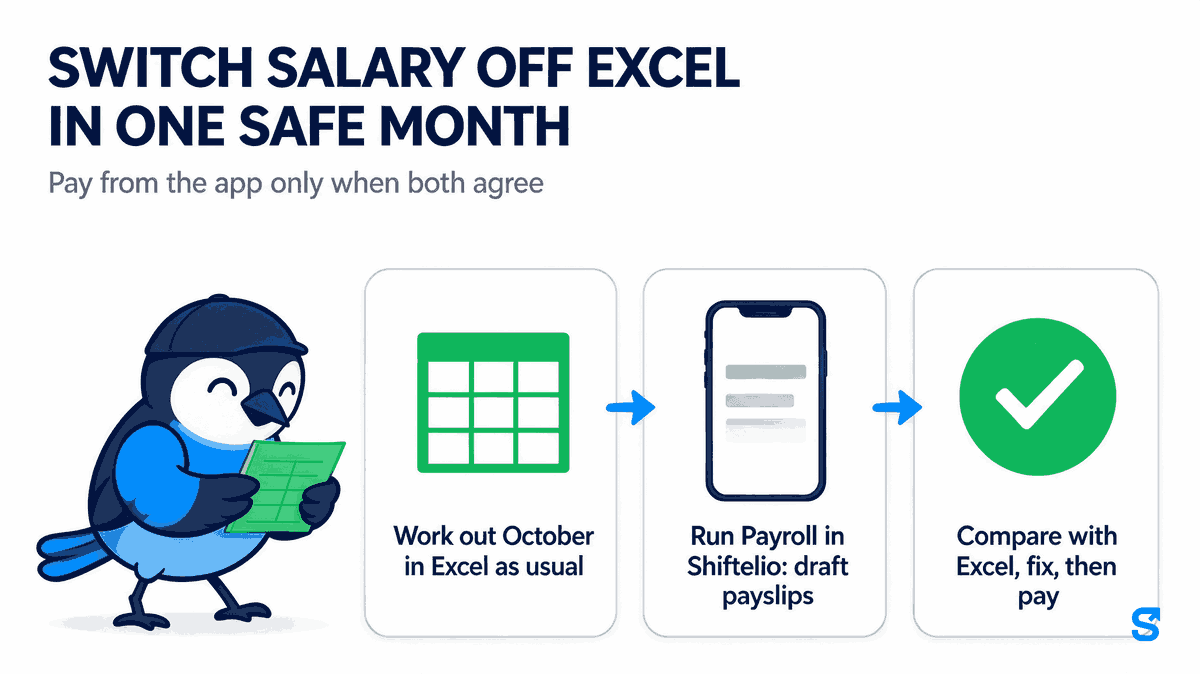
Do nothing differently. Your accountant or manager fills in the sheet the way they always have. Keep each person's Emp Code in a column, because that is how the two sides are matched.
On the Payroll page, run payroll for the same month. Shiftelio works out each person's pay from the attendance your staff marked in the app and the pay settings you gave it. The payslips stay as drafts: nothing is approved and nothing is paid yet.
Open Money, then the Salary sheet tab, on that month. Because the month has draft payslips, a Compare with Excel button appears. Pick your Excel or CSV file, tell it once which column is which, and read the list. Fix what differs, approve, and pay from the Salary sheet.
Timing helps here. Under Section 17 of the Code on Wages, 2019, wages for a monthly wage period are due before the seventh day of the following month. If you run the draft in the first days of the month, you have time to look into every difference before that date.
What Compare with Excel shows you
The comparison sheet opens with the line "Pick your salary Excel for October. We match people by Emp Code." You pick the file from your phone or computer. If your salary sheet lives in Google Sheets or an older format, save or download it as .xlsx, or as CSV using Excel's own Save as CSV option.
Then it asks "Which column is which? We remember this for next time." You point it at your columns:
- Emp Code, which is required.
- Name, so a person with no code can still be found.
- Earned, Cuts and To pay, and you need at least one of these three.
Your columns can be called anything. "Net Salary", "Final Amt" or "Payable" all work as To pay; you are the one telling it which is which.
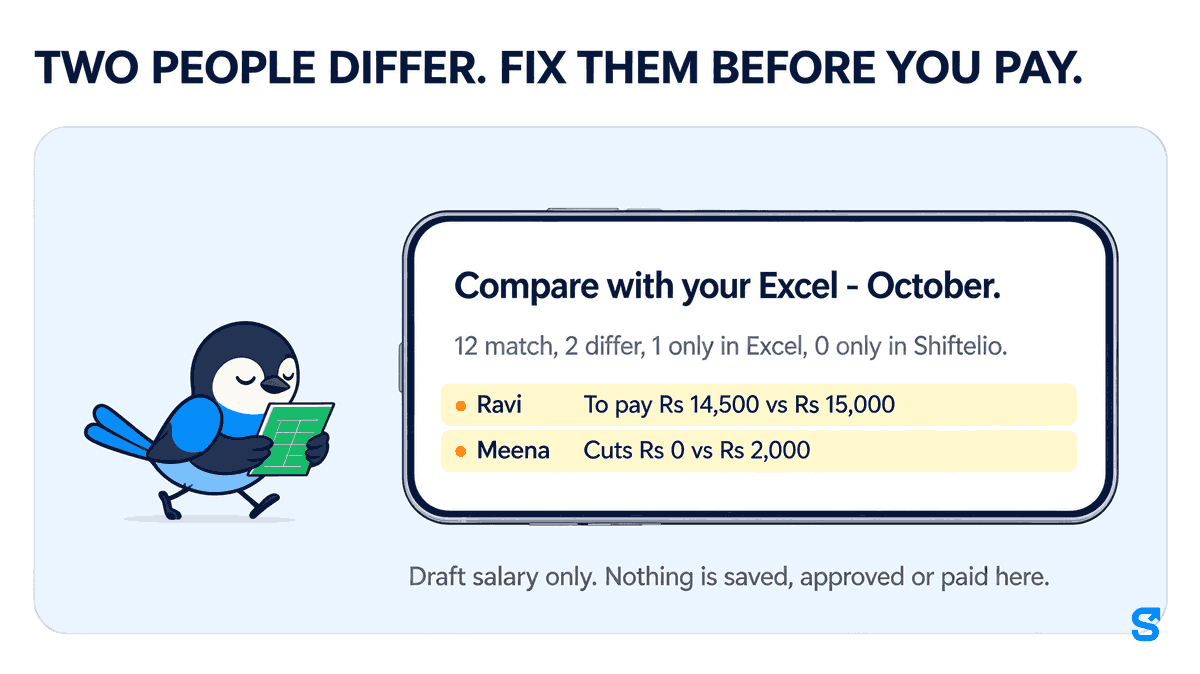
The result is one row per person, each amount written as Shiftelio vs Excel. Take a small shop with 15 staff checking October:
| Person | What the row says | Why |
|---|---|---|
| Ravi | To pay Rs 14,500 vs Rs 15,000 | Ravi was absent on 14 October. The app has it from his attendance; the Excel row was typed before. |
| Meena | Cuts Rs 0 vs Rs 2,000 | Meena took a Rs 2,000 advance in cash. The Excel has it, Shiftelio was never told. |
| Suresh | Only in your Excel | Suresh left on 10 October and still has a row in the sheet. |
At the top, a summary line reads 12 match, 2 differ, 1 only in Excel, 0 only in Shiftelio. Tap Only differences to hide the 12 people who already agree, or All to see everyone.
Notice that in this example the app is right once and the Excel is right once. That is the point of the comparison: it is not there to prove the app is right, it is there to show you exactly where the two disagree so you can decide.
Names that only match by name
If a row in your Excel has no Emp Code that Shiftelio knows, it can still be matched by name. Those people are listed separately under Check these matches, with the note "Matched by name only. Add the Emp Code in Shiftelio so they match next time." Two staff called Ramesh is exactly the case where a name match should be checked by a person, so it is never quietly accepted.
Why the two sides usually differ
When the two sides disagree, the cause is almost always one of these five:
- A day counted differently. An absence, a half day or a holiday that one side has and the other does not.
- Money given outside the sheet. An advance or a loan paid in cash and written down in only one place.
- A different month length. Some sheets divide monthly pay by 26, some by 30, some by the days in that month.
- A rule only one side knows. A late cut, an overtime rate or a paid weekly off that was set up in one and not the other.
- A plain typing mistake. A copied formula, a row pasted into the wrong place, a zero too many.
The first two are fixed in the record: mark the day correctly, or record the advance in the app. The third and fourth are settings, and once they match your practice they stay matched. The last one is the reason most owners decide not to go back to the sheet.
Nothing is changed by comparing
The comparison sheet says it at the top: "Draft salary only. Nothing is saved, approved or paid here." Reading your Excel does not overwrite a payslip, change anyone's pay settings or move any money. You make the changes yourself, in the usual places, and run the comparison again until the only differences left are ones you understand.
If you are starting fresh on Shiftelio, the Salary sheet also has a one-time Opening check, where you bring in salary you still owe each person and advances or loans given in your Excel days. It has its own Fill from my Excel button, so the money already owed comes across without typing it again.
Who can use it
The Salary sheet opens for owners and for managers who may see payroll. A manager without that permission does not see the sheet or the comparison. The button only appears on a month that has draft payslips; once a month is approved and paid, the comparison has done its job.
Our longer guide to choosing payroll software for a small business in India covers what else to look for. And if your sheet is already built from attendance, the attendance and salary sheet in Excel explains the download that goes the other way, from the app into Excel.
Which payroll app lets you check it against your Excel first?
Can I keep using Excel while I try a payroll app?
Yes. Run one month in both, then compare them person by person with Compare with Excel before paying. If you want more proof, run a second month side by side before you stop updating the sheet.
Does Compare with Excel change my payroll?
No. It only reads your file. Nothing is saved, approved or paid by the comparison, and your draft payslips stay exactly as they were.
What if my Excel has no employee codes?
People can still be matched by name, but they are listed under Check these matches for you to confirm. Adding the Emp Code in Shiftelio makes them match by code next time.
Which file types can I compare?
An Excel .xlsx file or a CSV. A Google Sheet can be downloaded as either before you pick it.
My column names are different. Will it still work?
Yes. You tell it once which of your columns is Emp Code, Name, Earned, Cuts and To pay, and it remembers that for the next month.
Keep reading
Free to use, no signup: Payroll calculators.