Attendance and Salary Sheet in Excel, Built From Attendance Instead of Typed
In short
A salary sheet in Excel with day counts, late marks, PF, ESI, a row per check-in and a TOTAL that respects filters, built from attendance, not typed.
Search for "salary sheet in excel with formula" and you will find hundreds of templates. Every one of them has the same hole in the middle: somebody still has to type in how many days each person was present. That column is where the month goes wrong, and it is the one column a template cannot fill for you.
This article is about the other way round. If your staff already mark attendance on their phones, the attendance and salary sheet in Excel should come out of that attendance, already counted, already totalled, in the layout your accountant expects. Shiftelio's payroll page now hands you exactly that workbook, and below is what is in it, how the numbers are counted, and where a hand-made sheet still makes sense.
Why the hand-made salary sheet breaks every month
A typical Excel salary sheet for a small business has a row per employee and columns for monthly salary, days present, gross, PF, ESI, professional tax, advance and net pay. The formulas are the easy part. A common one is =ROUND(Salary/DaysInMonth*PaidDays,0) for gross, and a SUM at the bottom.
The trouble is everything feeding PaidDays:
- Days are counted from a register nobody trusts. The paper muster roll or a WhatsApp group of selfies has to be turned into a number per person, by hand, usually on the last evening of the month.
- Weekly offs, holidays and leave are counted differently by different people. Is a Sunday "present" for a monthly-salaried cook? Is a holiday that somebody worked counted twice? Each clerk decides, and next month a different clerk decides differently.
- The TOTAL lies once you filter. Filter the sheet to one department and a plain
SUMstill adds every hidden row. The kitchen's total shows the whole restaurant's wages. - Nobody notices the zero. A new joiner whose salary was never entered shows net pay of zero, sits in the middle of 40 rows, and gets paid nothing until they complain.
None of this is a formula problem. It is a counting problem, and counting is what an attendance app already did all month.
What the Excel download gives you
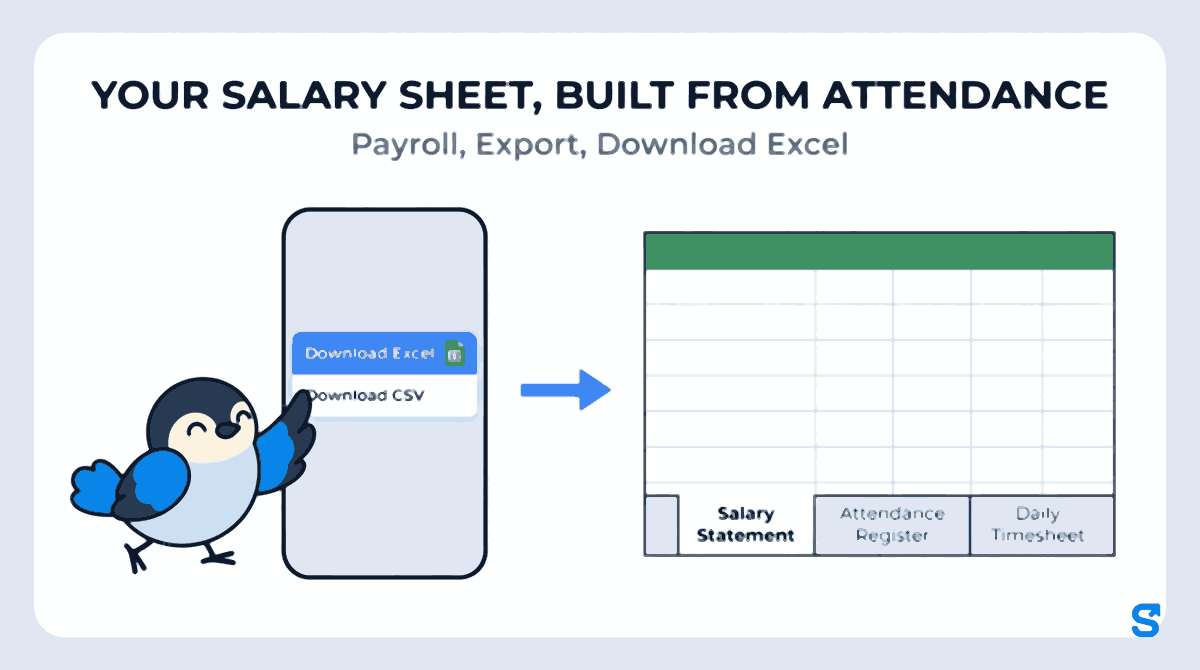
On the Payroll screen, choose the period, open Export and pick Download Excel. The menu describes it as the "Salary statement, attendance register and timesheet", and that is what arrives: one workbook with these sheets.
| Sheet | What is on it |
|---|---|
| Salary Statement | One row per person: day counts, late and left-early counts, Set Salary, hours, overtime, earnings, every deduction, Net Pay, employer PF and ESI, Total Cost to Company, and a TOTAL row |
| Employee Card | Pick one name and see that person's days, pay and every day of the period on one page |
| By Department | Staff, gross, deductions, net pay and cost to company for each department |
| Attendance Register | The month as a grid, one mark per person per day, with late and left-early marks and a legend |
| Daily Timesheet | One row per paid check-in: shift, status, check in, check out, hours, earnings, overtime, penalty, late by, left early and auto check-out |
| Advances & Loans | Every advance and loan with what is repaid and still outstanding, only for people allowed to see loans |
| About This Report | How every count on the other sheets was made, in plain sentences |
If anybody on the file has two shifts on one date, two more sheets appear: the Shift Statement and the Shift Register. They are explained further down.
Every column heading in the workbook carries a note. Hover over it, or tap it on a phone, and it says what the column means, so nobody has to ask what "No Shift" or "Late by" counts.
Download CSV is still there beside it, described as "Raw rows, one per day, for your own formulas". Like the timesheet, it now gives a second check-in on the same day its own row, and it adds Late (min), Left Early, Auto Checked Out and Reason columns at the end, with a few # lines at the top explaining them. Use the CSV if you want to build your own sheet on top. Use the Excel workbook if you want to open it and read it.
The Salary Statement, column by column
Every per-person sheet opens with the same three columns, Employee, Department and Position, each with a filter, so a Department filter sits in the same place on the Salary Statement, the Attendance Register and the Daily Timesheet.
Then come the day counts, which depend on how your business calculates salary (the Salary calculation setting in Business Settings):
Calendar days
Present, Calendar Days, Days Worked, Weekly Offs, Holidays, Paid Leave, Unpaid Leave, Absent and No Shift.
Every day of the period is counted once, so Days Worked + Weekly Offs + Holidays + Paid Leave + Unpaid Leave + Absent + No Shift always equals Calendar Days.
Working days
Present, Working Days, Paid Leave, Unpaid Leave, Absent, Holidays and Extra Days Worked.
Only each person's expected days are counted, so Present + Paid Leave + Unpaid Leave + Holidays + Absent equals Working Days. A day worked that was not expected goes in Extra Days Worked.
No Shift is a day with no shift in force for that person: before they joined, before their first shift started, or after it ended. It is never counted as absent, and tapping a No Shift cell shows which days and why.
Next come five attendance columns: Late days, Late by (hrs:min), Left early days, Auto check-outs and To review, the auto check-outs still waiting for a manager to look at them. Late by is a total, so 12:30 means 12 hours 30 minutes, not a clock time. Left early counts only the days a person checked out early themselves; an auto check-out by the app is never counted as leaving early.
After those come the money columns: Set Salary and Salary Per, Hours, Overtime Hrs, OT Rate, Gross Earnings, Overtime Pay, Incentives, Penalties, PF (Employee), ESI (Employee), Professional Tax, TDS, Loan EMI, Advance Recovered, Total Deductions and Net Pay. A shaded band at the end shows PF (Employer), ESI (Employer) and Total Cost to Company, so the owner sees what the month really cost and not only what went into bank accounts.
Gross Earnings is already after any late or early-leaving penalties, so the Penalties column is there for information: do not take it off a second time.
The workbook computes nothing of its own. Every figure comes from the same pay engine as the payroll screen, so the workbook and the screen cannot quietly disagree about what somebody earned.
The TOTAL row adds only what you can see
This is the fix for the most common Excel salary sheet mistake. The TOTAL row at the bottom of the Salary Statement uses Excel's own SUBTOTAL function in the form that skips rows a filter has hidden. Filter the Department column to Kitchen and the total becomes the kitchen's total, and the staff count beside it says so.
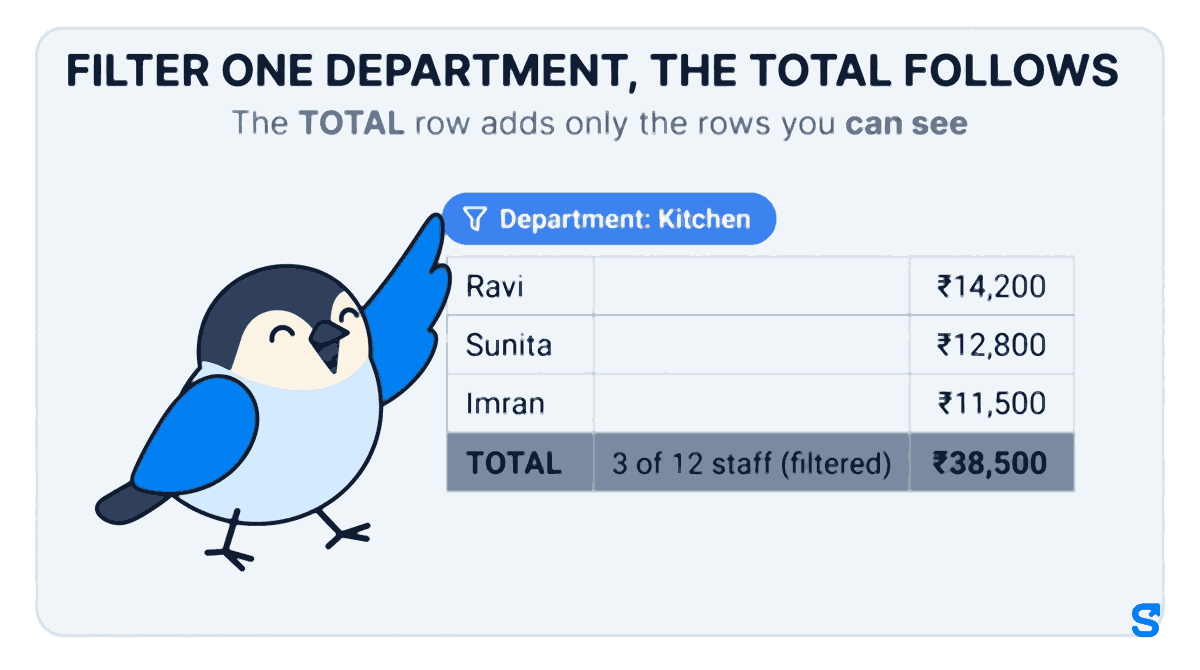
A worked example. A restaurant has 12 staff. Filter the Salary Statement to Kitchen and three rows stay: Ravi with Net Pay ₹14,200, Sunita with ₹12,800 and Imran with ₹11,500. The TOTAL row now reads ₹38,500 for Net Pay, and the staff cell reads "3 of 12 staff (filtered)". Clear the filter and it goes back to all 12 and the whole restaurant's total. With a plain SUM you would have seen the whole restaurant's total under three kitchen rows and not known.
The By Department sheet gives the same split without any filtering. One thing to know: somebody in two departments, say Gym and PT, is counted in each, so the department rows can add up to more than the total. The last line counts every person once and matches the Salary Statement TOTAL.
The attendance register, without typing a single P
The Attendance Register is the muster roll layout every payroll clerk in India already reads: one row per person, one column per day, and a mark in each cell. The legend row reads P present, P* late, P- left early, P*- both, ½ half day, LV leave, H holiday, W weekly off, A absent and – for no shift. Late days are shaded, left-early days get a box, and absences are printed in bold so a run of them catches the eye. Tap any marked cell and its note says how late the person was, the reason they typed, or why the app checked them out.
Each row ends with its own counts, worked out the same way as the Salary Statement: P, ½, LV, H, W, A, No Shift, Late days, Left early days and Auto check-outs. So the register and the salary sheet agree about how many days somebody was present, and about how many of those days started late.
The register is built for up to 62 days. Download a whole quarter or a year and that sheet explains that a grid that wide scrolls in both directions and shows less than the timesheet, and points you to the Daily Timesheet instead. Every other sheet covers whatever range you asked for.
A second check-in in one day gets its own timesheet row
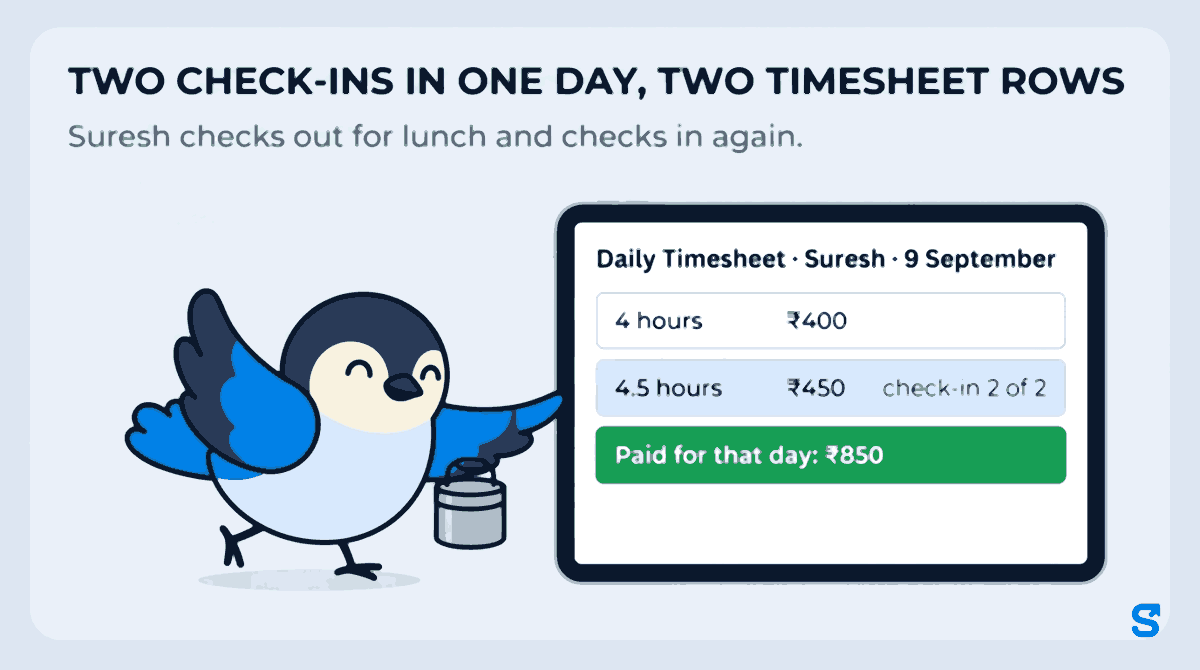
The Daily Timesheet is the sheet you reconcile a disputed day against, so it has to show every check-in that was paid. It now has one row per paid check-in, not one row per person per day. If somebody checks in twice in the same shift on the same date, the second row is its own line with its own hours and earnings, and its Check In cell carries the note "check-in 2 of 2".
A worked example. Suresh is a store helper paid ₹100 an hour. On 9 September he checks out for lunch and checks in again. The Daily Timesheet shows two rows for him on 9 September: 4 hours earning ₹400, then 4.5 hours earning ₹450 with "check-in 2 of 2" on it. The two rows add up to the ₹850 he is paid for that day.
Before this change, a second check-in in the same shift on the same day replaced the first row, so its money was missing from the timesheet and the CSV even though the pay itself was right. Now the worked timesheet rows add up to the pay for time worked. The Set Salary on each row is the salary that check-in was actually paid under, so a raise in the middle of the month shows on the right days.
Staff on two shifts a day: one salary line per shift
Gyms, restaurants and security agencies often have one person on two shifts a day, sometimes at different rates. When anybody in the file has two shifts on one date, the workbook adds three things.
- Shift Statement. The Salary Statement again, with one row per shift instead of one per person. Hours, overtime, gross and penalties are per shift and add up to the Salary Statement. Pay that belongs to no single shift, such as PT commission, sits on a row of its own, so every column still adds up.
- Shift Register. The Attendance Register with one row per shift, so you can see which shift a person skipped. P+ marks a shift worked on a day it was not scheduled.
- Shift counts. The Salary Statement gains Shifts Expected, Shifts Attended and Missed Shifts at the far right. A missed shift is one with no check-in, no leave and no holiday, and it earns nothing.
In the ordinary Attendance Register, a day where the person came to one of their two shifts reads 1of2 instead of P. Tap it and the note names both, for example "Came: Morning · Missed: Evening". So if Farida, a cook on a morning and an evening shift, skips the evening one on 12 September, her register shows 1of2 on that day and her Salary Statement shows one missed shift, without anybody writing it down. Her two shifts also appear as two lines on the Shift Statement, so if the evening shift pays a different rate you can see what each one earned.
A file where nobody has two shifts on one date has none of this: no extra sheets and no extra columns, so nothing moves for a business that runs one shift a day.
One person's whole month on the Employee Card
The Employee Card is the second tab, so it is the one a phone opens next. Pick a name in the yellow cell at the top and the card shows that person's days, pay, a day-by-day list and their advances, on one page you can print or send. It reads a hidden copy of the numbers, so sorting or filtering another tab can never make it show somebody else's figures, and it opens already filled in for the first name, even in a WhatsApp preview that does not recalculate. It is the quickest answer to a staff member asking "how was my salary worked out".
Where the counting rules are written down
The About This Report sheet is the part a template never has: every rule behind the counts, in plain sentences, so a new accountant does not have to guess. A few of them:
- A public holiday that applies to the person counts as a Holiday, paid or not, and is never counted as Absent.
- A holiday or weekly off that was worked is counted once, as a day worked.
- Weekly offs count in Present for staff on a monthly or weekly salary, and are shown but not counted for staff paid by the hour or by the shift.
- Someone who worked two shifts on one date is counted once for that date. The shift columns count each shift.
- A day is late when the first check-in of a shift was after its start time plus the grace minutes, and a day on approved half-day leave is never counted as late or left early.
- In a month still in progress, only full days up to yesterday are counted. Today and later days never show as absent.
Two more things sit at the top of the Salary Statement rather than being buried. If anybody on the sheet has no pay contract set, an amber band names them, and says how many of them clocked in during the period and are shown as earning nothing. That is the new joiner with the zero, found before pay day instead of after. And the line under the title says which Salary calculation the counts follow, and whether the month is still in progress.
Who can download it, and what they see
Payroll figures are the most sensitive numbers in the business, so the download follows the same permissions as the payroll page:
- The owner gets everything.
- A manager needs the Payroll View tick on their role. A manager whose role covers only some staff gets a workbook with exactly those people, and the TOTAL equals the rows printed above it.
- Loan balances and the Advances & Loans sheet need the Loans View tick, and Reimbursement Due needs the Expenses View tick. Without them those columns are simply left out. The Reason column, what staff typed for being late or leaving early, and the times a manager changed, need the Attendance View tick. Net Pay is the same number for everybody who can open the workbook.
If you keep wage registers for an inspection, the Code on Wages, 2019 is where the duty to keep them comes from, and our guide to statutory registers and wage slips under the labour codes goes through the forms. The Excel workbook is your working salary sheet and muster roll; it is not a prescribed statutory form, and we do not claim it is. The PF and ESI columns show what was deducted; filing still happens on the EPFO and ESIC portals.
When a template is still the right answer
Be honest about this. If your staff do not mark attendance on any app, a downloaded Excel template is the right tool, and the counting will be done by a person either way. If you pay two people, a notebook is fine.
The workbook earns its place once you have a team whose attendance is already recorded, more than one department, or an accountant who asks every month "why does this total not match". At that point the question is not which formula to use but why anybody is still typing the days in. If you are working out the pay itself for the first time, start with how to calculate payroll in India.
Which app gives you the salary sheet in Excel from attendance?
Can I get the attendance and salary sheet in Excel with formulas?
The TOTAL row is a live Excel formula, SUBTOTAL, so it recalculates when you filter. The per-person figures are values from the pay engine, not formulas, because the counting is done from attendance rather than typed. If you want raw daily rows to build your own formulas, use Download CSV.
Does the salary sheet include PF and ESI?
Yes. The Salary Statement has PF (Employee), ESI (Employee), Professional Tax and TDS as deductions, and PF (Employer) and ESI (Employer) in the cost to company band.
Can I download one department only?
Download the workbook and filter the Department column. The TOTAL row then adds only the rows you can see. The By Department sheet also shows every department's totals side by side.
How does the salary sheet handle staff on two shifts a day?
When somebody has two shifts on one date, the workbook adds a Shift Statement with one salary line per shift and a Shift Register with one row per shift. The Salary Statement gains Shifts Expected, Shifts Attended and Missed Shifts, and a day where one of two shifts was missed reads 1of2 in the Attendance Register.
Can I download more than one month?
Yes. Pick any period on the Payroll screen. Every sheet covers the full range, except the Attendance Register, which is built for up to 62 days and points you to the Daily Timesheet for longer ranges.
Keep reading
Free to use, no signup: Payroll calculators.